
Creating a profile on the site
PLEASE NOTE
A Steam account is required for your profile to appear on our site. We don't support other login methods for the time being.
Steps to create a profile
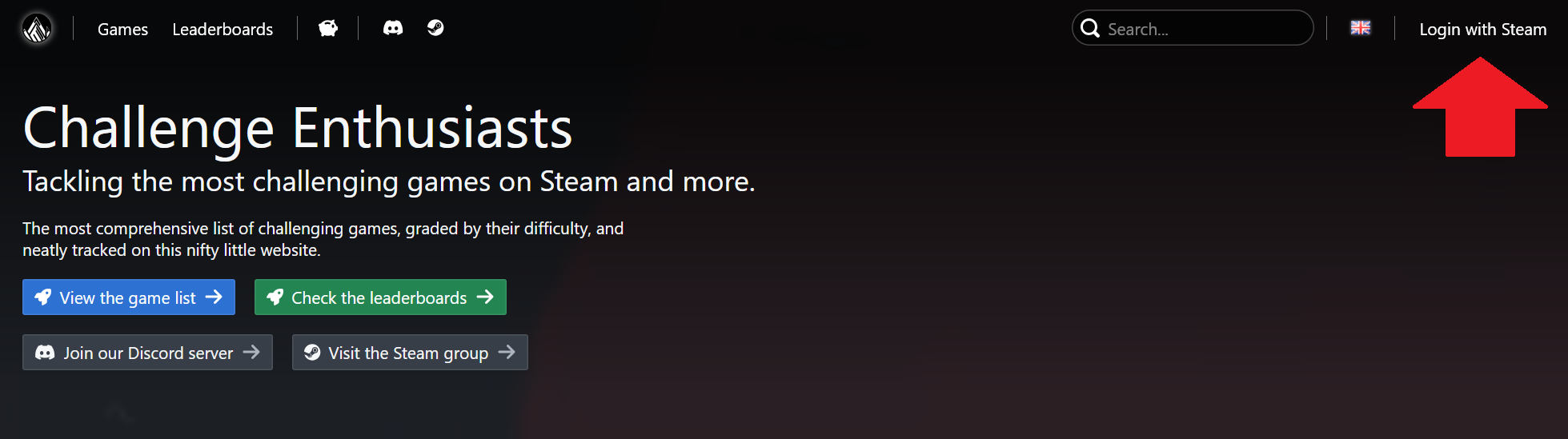
- Click the 'Login with Steam' button in the top right of any page on the CE site.
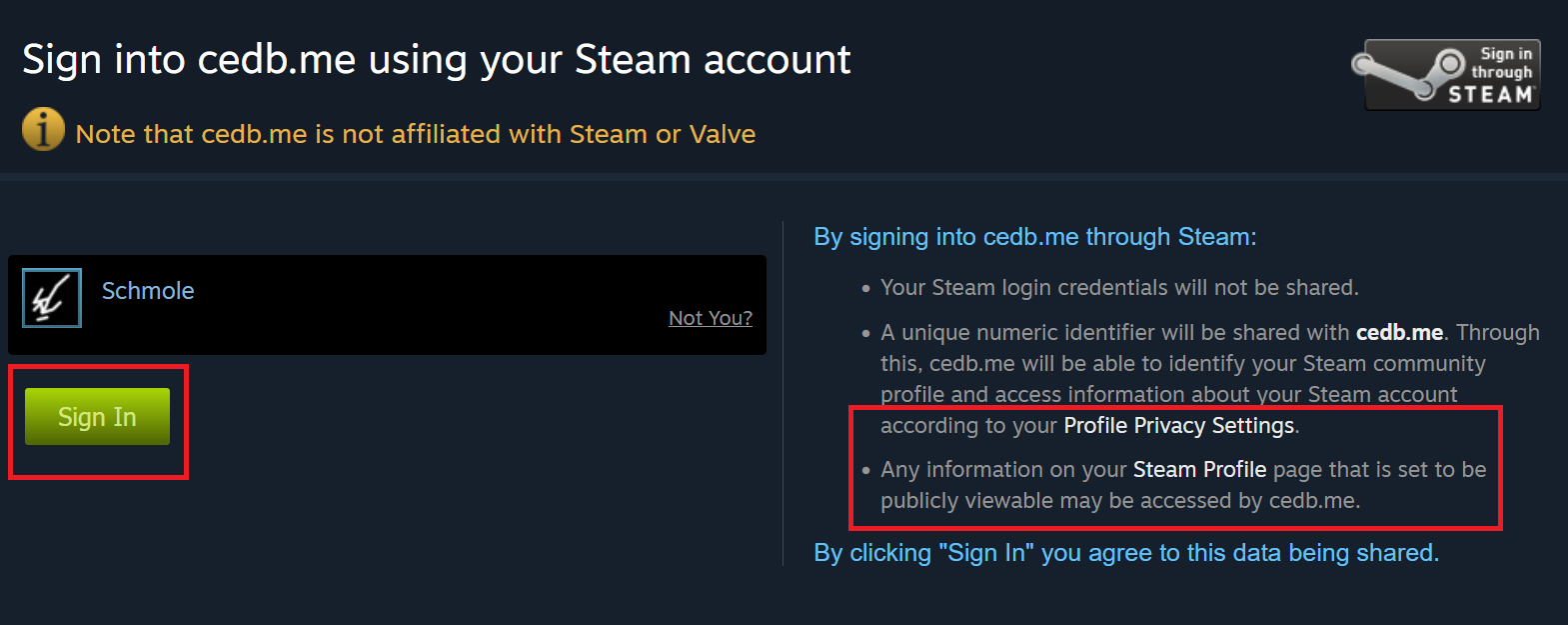
Log into your Steam account (if not already logged in), and allow the CE website access to your publicly available information (see right-hand box in red).
Once logged in to Steam, click the 'Sign In' button (left-hand box).
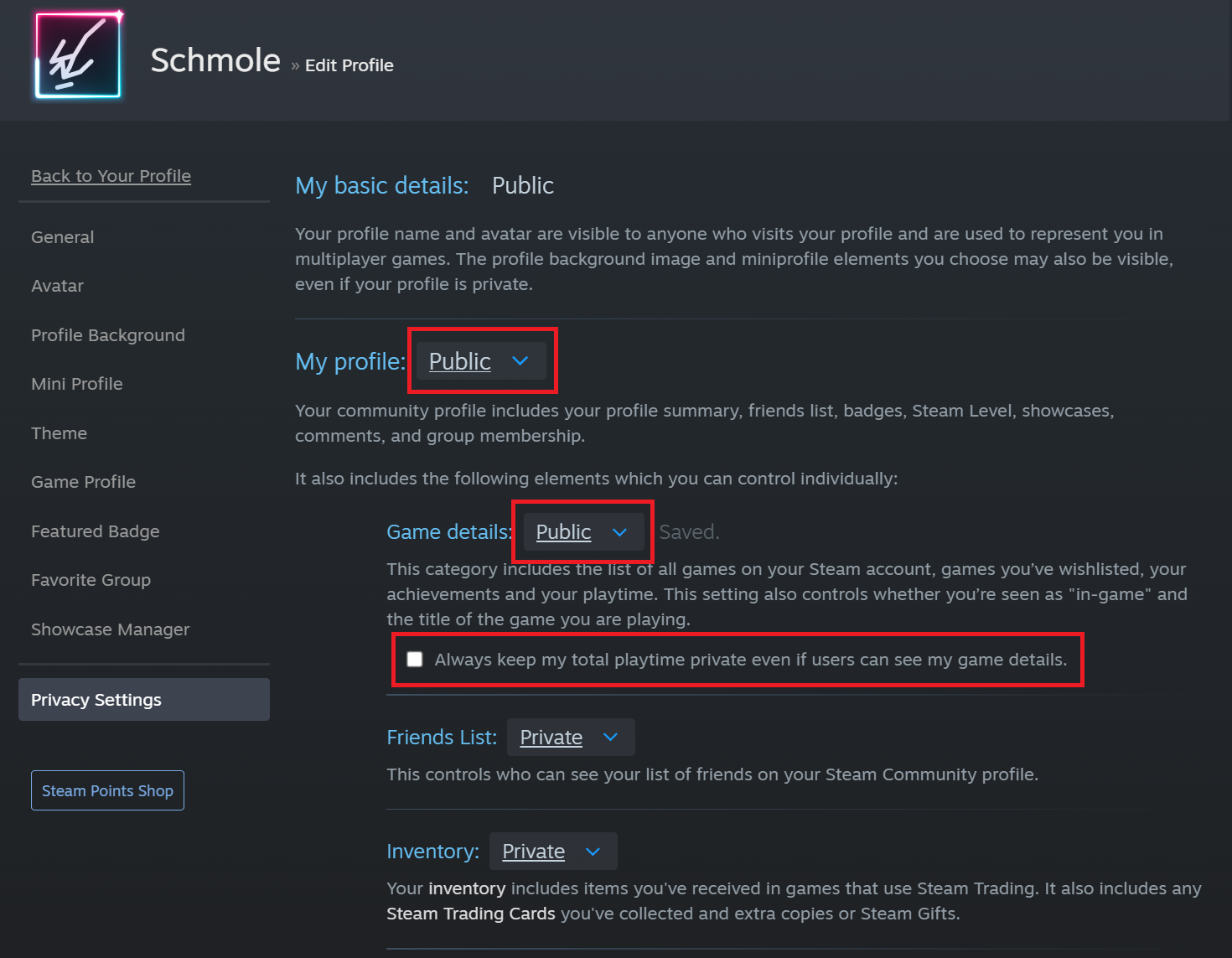
Ensure the key elements of your Steam profile are set to Public (see below for the three items required).
These settings are required for CE (or external websites in general) to access your Steam game information.
Settings can be accessed by browsing to your profile page on Steam, clicking 'Edit Profile' (top right), and selecting 'Privacy Setting' down the left-side menu.
Alternatively, you can browse directly there, via the following link:
https://steamcommunity.com/id/{USER_NAME}/edit/settings
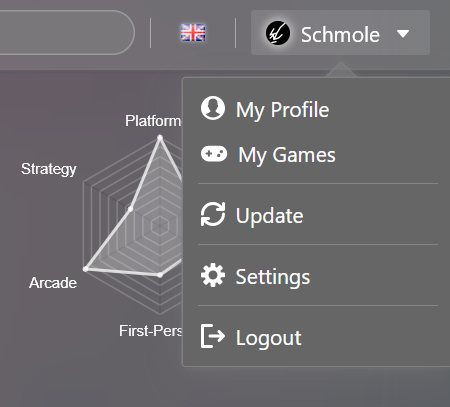
- Once your Steam profile settings are in the correct state, access the user options in the top right of any page on the CE website, and click the "Update" button.
RetroAchievements linkage
To add a RetroAchievements (RA) profile to your CE profile, browse to "Settings" in your profile dropdown (top-right of the CE website).
There is a field where you can enter the your RA account's username; once entered, click the "Verify" button.
A verification popup message will appear, requesting you enter a specific string of characters to your RA profile's 'motto'. 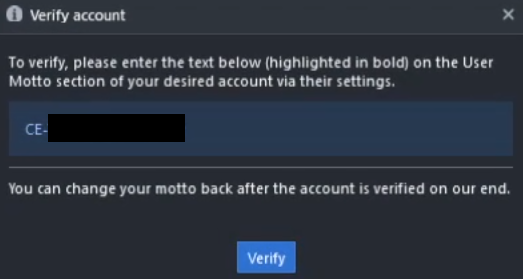
A link to the RA user settings page is available here: RA Settings)
Once the string of characters has been entered in the Motto field, click "Update" on the RA Settings page. 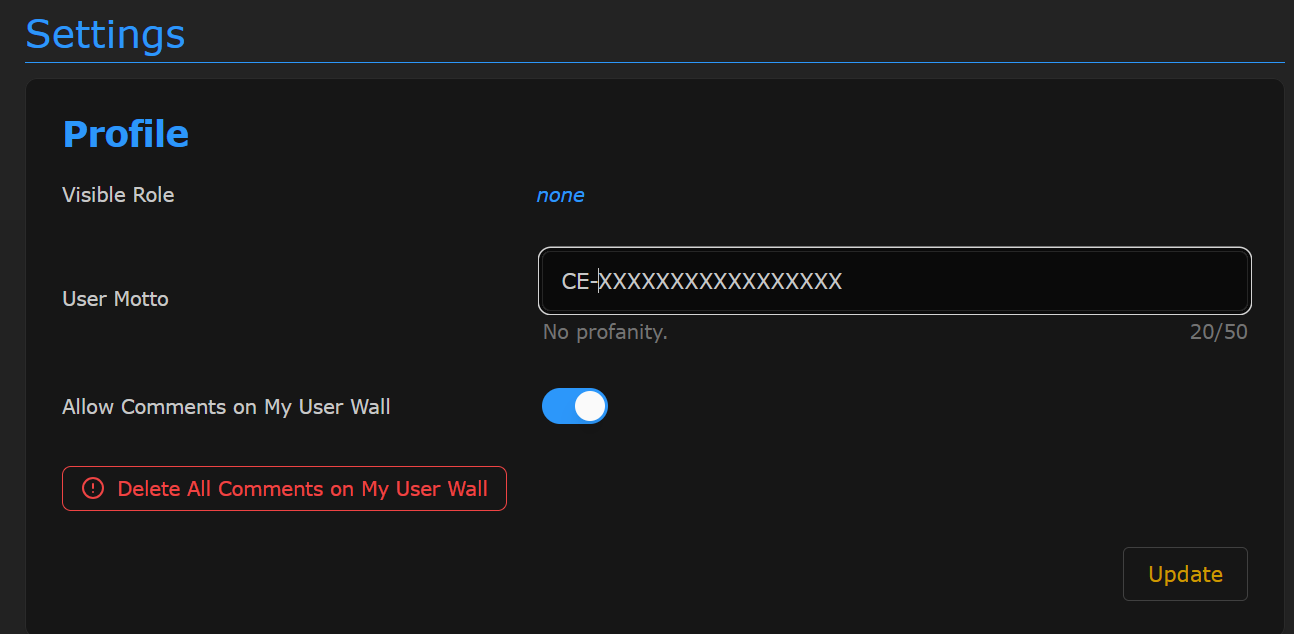
After this update has been made to your RA userpage, click 'Verify' on the account verification popup on the CE website.
You are free to remove/revert/change your motto once this step has been completed.