
The basics
Using the CE website
Using the CE site does not require an account* - using/filtering database of games, checking the objectives for individual games, browsing profiles etc can be accessed by anyone.
To track your game/objective completions, gain points / ranks, earn roles etc though, you will need to link a Steam account to the CE website.
Basic notes
- The "games" section displays a list of games that CE has deemed challenging enough to add to the website. Each game has its own dedicated page where one or more objectives may be listed with a set point value.
- The "leaderboards" section showcases any user who has logged into the website and their point total across all six categories. Leaderboards can be sorted by total points, Challenge Rating (CR), or total completions.
- We have a Steam curator, which operates slightly differently than the website. The curator on Steam is a place where high quality games are recommended to players who like engaging with challenging content.
Languages
The site overlay supports multiple languages thanks to our community's efforts.
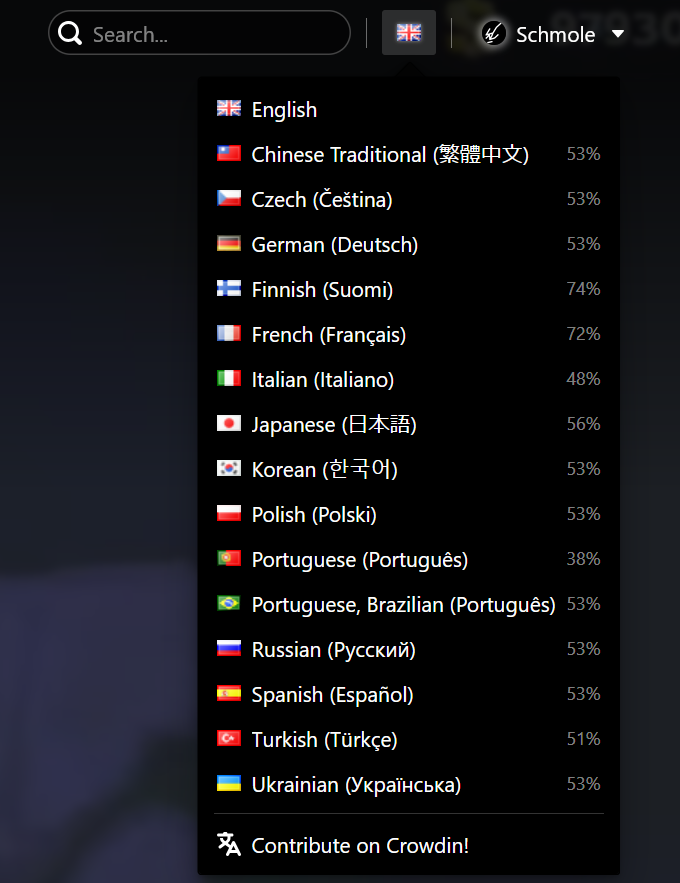
Please note that objectives are not translated and there is no plan to implement translations on them. When in doubt, please ask a community member.
CE profile creation
For information on how to create a CE profile on the website, and how to link your RetroAchievements account to that CE profile, please see the following page:
Creating a profile on the CE website / Linking RetroAchievements
Profile updates
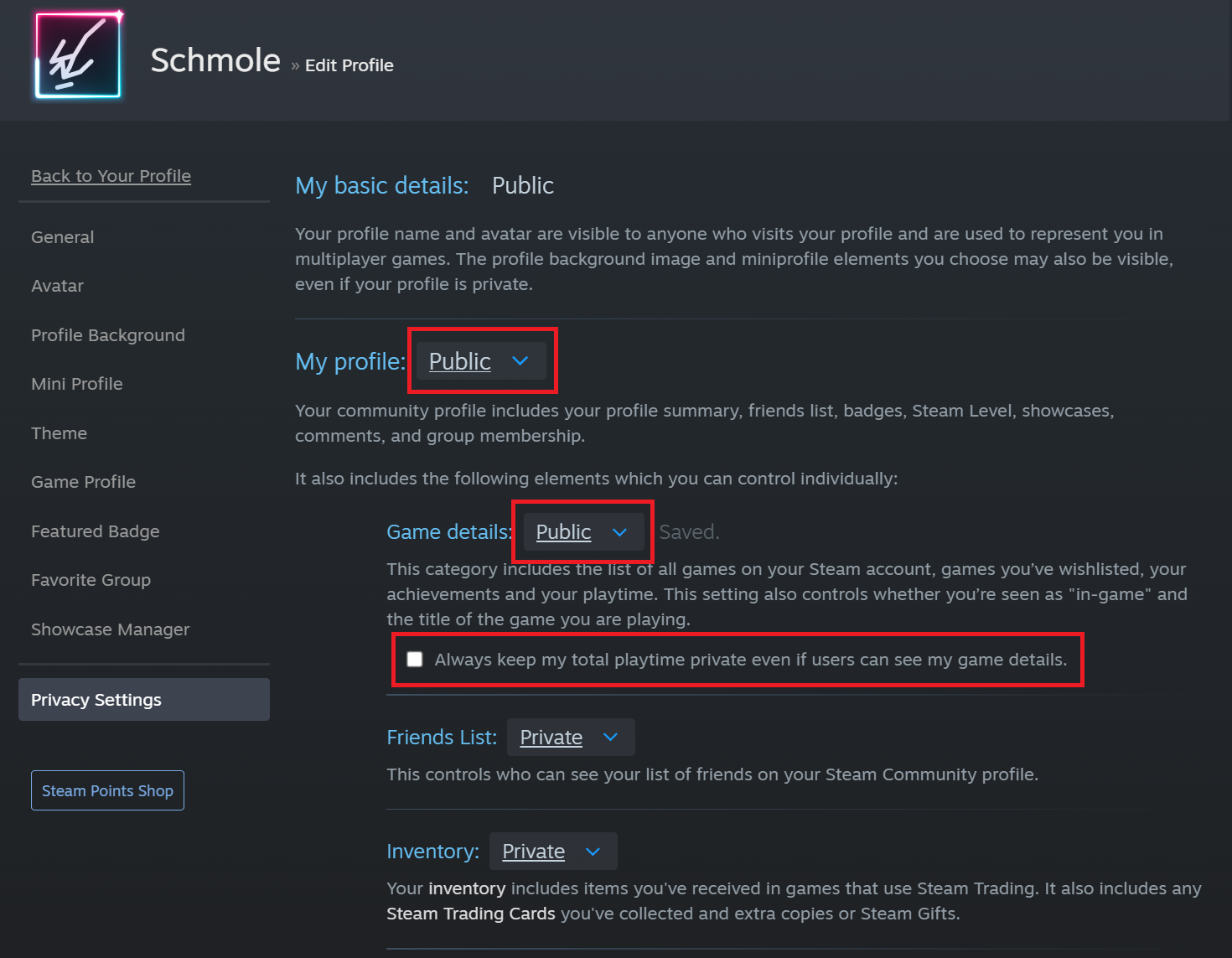
To update your profile, your Steam Privacy settings need to match the below image.
These settings can be changed after the sync is complete, if you so desire.
Full Steam sync
At any point down the track, assuming the Steam Privacy settings are in line with the above, you may use the "Update" button in the CE site user menu to sync your newly-added games or newly-earned achievements.
This will do a full check of your Steam profile, and update your CE profile accordingly with:
- Games in your Steam account
- Achievements unlocked for those games
UPDATE FREQUENCY
A full account sync may only be requested every 15 minutes.
This is in-part due to the limits placed upon external site access by Steam, and to assist the site manage its queue of requests to Steam.
Manual game sync
In addition to a full Steam account sync, you can also sync games individually.
(Assuming the Steam Privacy settings are in line with step 2 above).
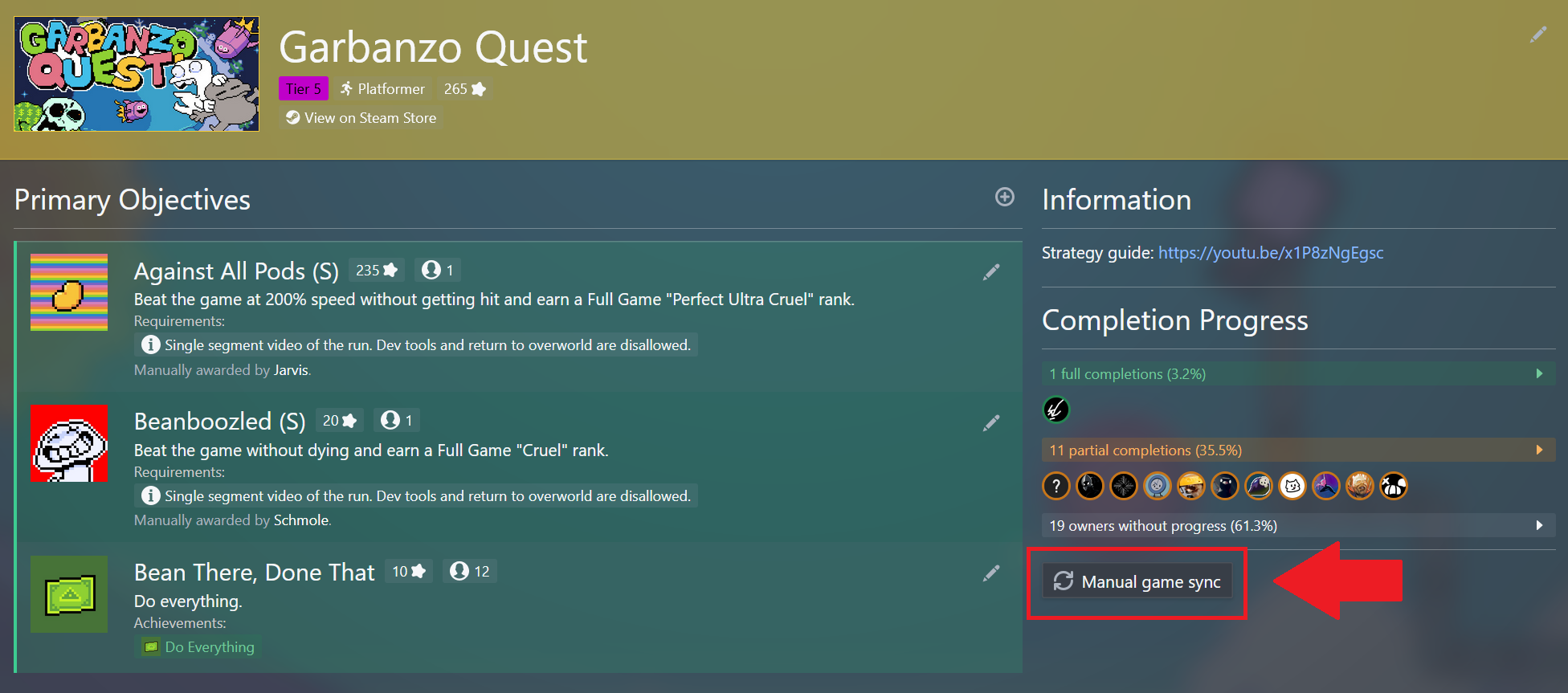
A manual sync is typically faster than a full Steam account sync, given the amount of information being requested.
Games not linked to your CE profile can be added individually this way, and the achievements associated with the game can likewise be synced.
UPDATE FREQUENCY
Individual game syncing can be initiated once every 5 minutes.
Family Share games
For games that have been played through the use of Steam's Family Share feature (and not owned by the Steam account linked to your CE profile), the CE site will only be able to sync the game to your CE profile if it has been played within the last two weeks.
If you can't see the game in your list of 'Recently Played Games' on your Steam profile, then the CE site cannot 'see' the game during a sync.
Submitting proof
There's no method of adding proof via the site as of present. You're required to join the Discord server or contact a staff member.
Using the CE Discord
To interact with the community, submit proof for objectives on the site, participate in events, utilise the Casino or Bounty Hub, you will need to access the CE Discord server.
Registering
Many of the server's features are locked until you have created an account/profile on the CE website. This is, at least in-part, to protect the Discord from unwanted bot activity, which had been an issue historically.
To access the core channels in the Discord server, post a link to your website profile in the server's landing pad (#landing-pad, where your join message is) to confirm your identity.
Video walkthrough